

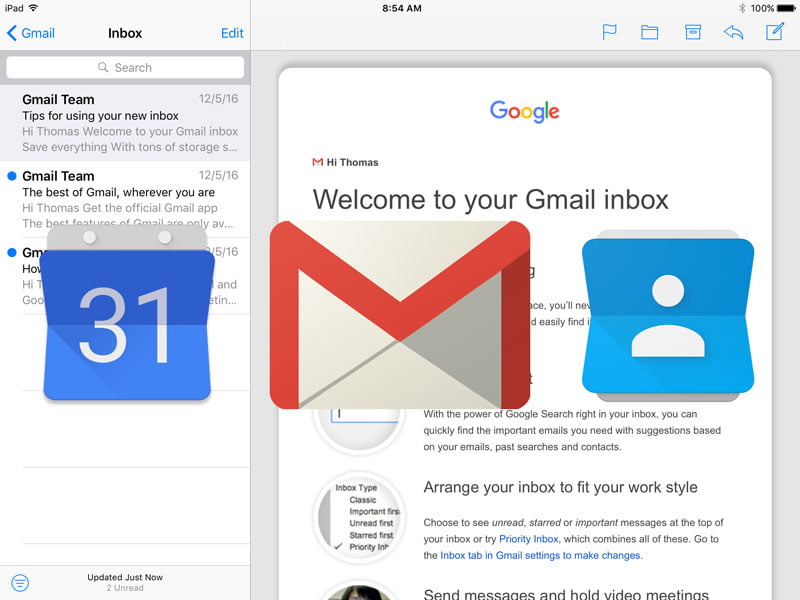
How to Setup EVSC Google Email, Calendar, & Contacts on Apple iOS Devices
NOTE: Directions are the same whether you set it up for iPhone or iPad.
Images on this post are part of an image gallery with captions. Select an image to enlarge and proceed through the different steps in the slides.
- Open the Settings application on the iPhone / iPad home screen.

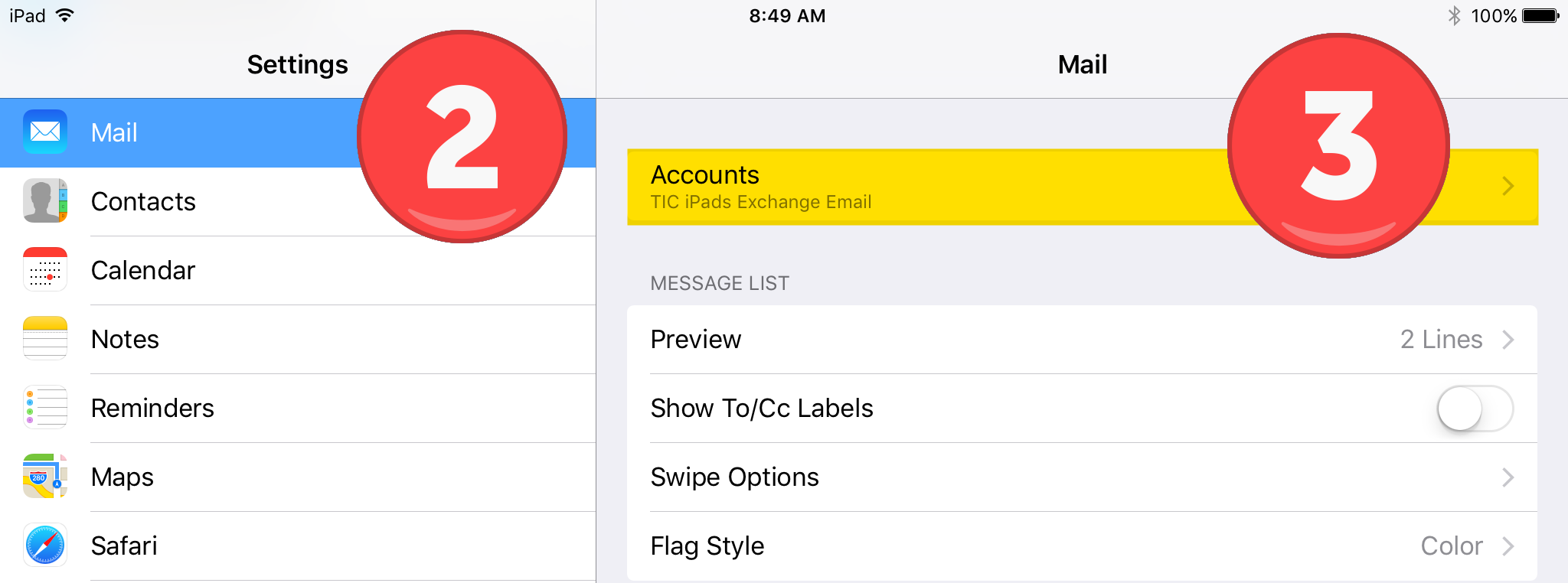
2. Scroll down the menu options on the left side and select Mail. (This will also configure the setup for Calendar and Contacts)
3. Select Accounts.
4. Select Add Account.
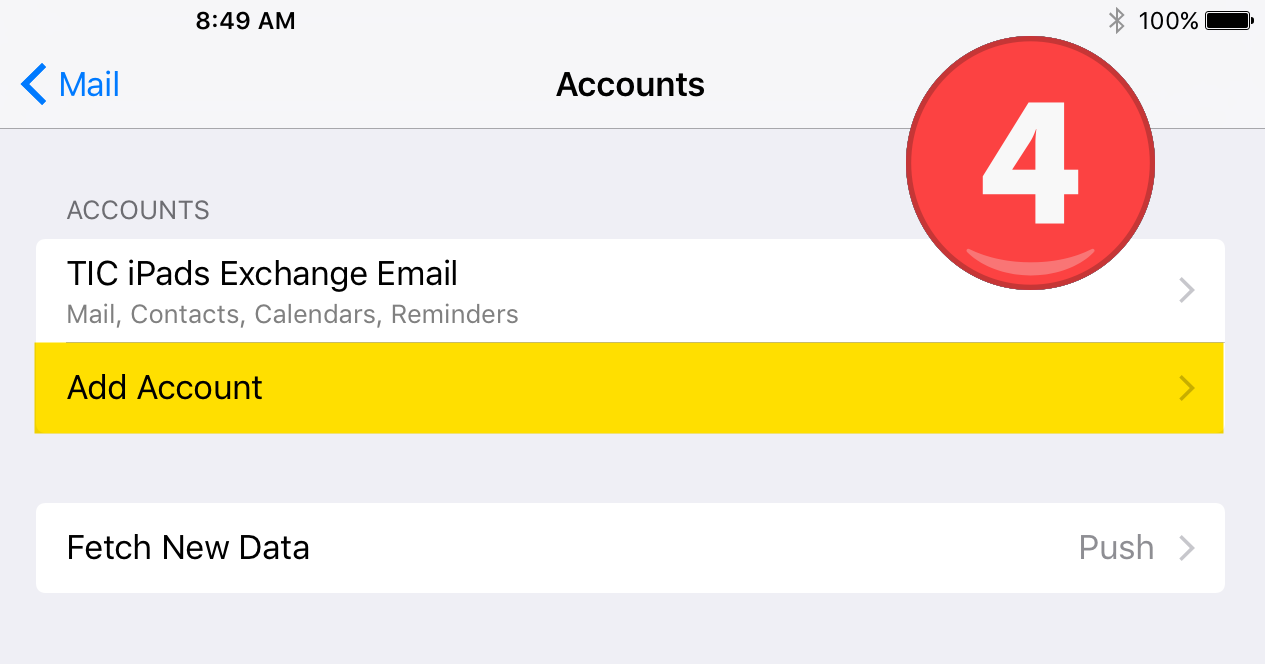
5. Select Google.

6. Type in your full email address. Example: thomas.teacher@evsck12.com.
Select Next.

7. Type in your email password.
Select Next.

8. Select the apps you would like Google to send information.
Click Save when done.

9. Click the Home button to return to your home screen.
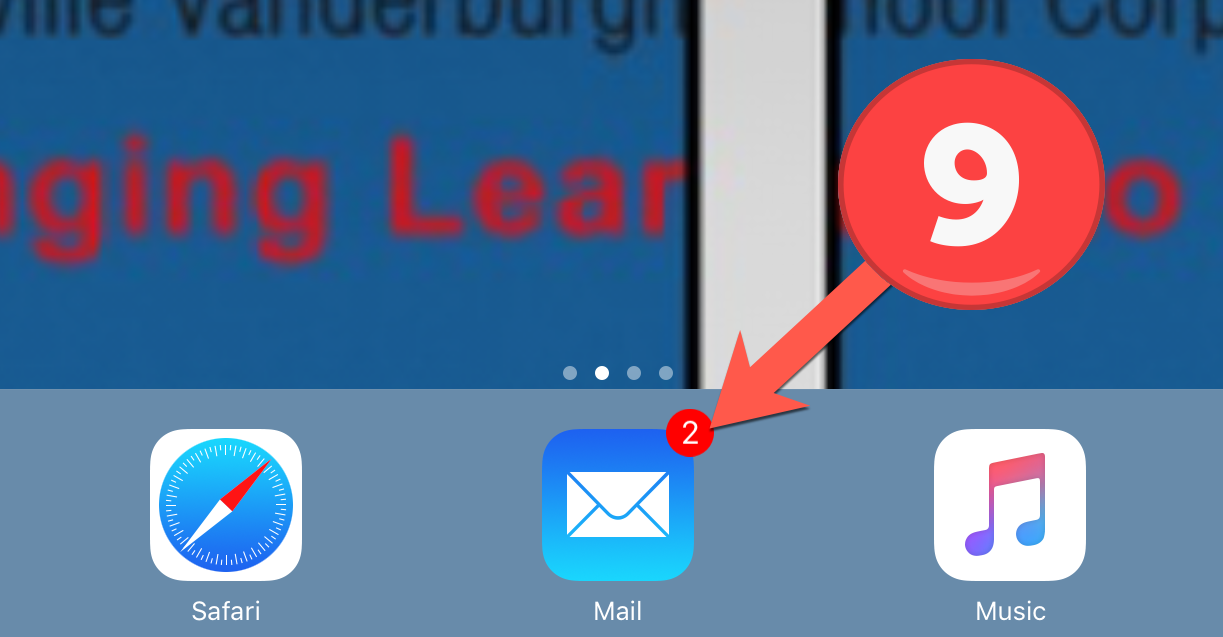
10. Select the Mail icon to view your email.

That’s it! You can now access Google Apps from your iPhone and/or iPad. If you have Push enabled on the phone, synchronization starts automatically. You can also just open the Mail, Calendar or Contacts app and wait a few seconds to start the sync.
If you have any questions about this setup, please leave a comment below.

2 comments
How do I set up school email on my Mac Book Air? laptop? Is is the same as setting it up on iphone?
Hi Sheree! To take full advantage of Gmail and Google Calendar, we recommend you use these programs using the Chrome Browser. https://www.google.com/chrome/ The Mail and Calendar apps in macOS can’t give you access to all the features Gmail and Calendar give you in the web browser.