

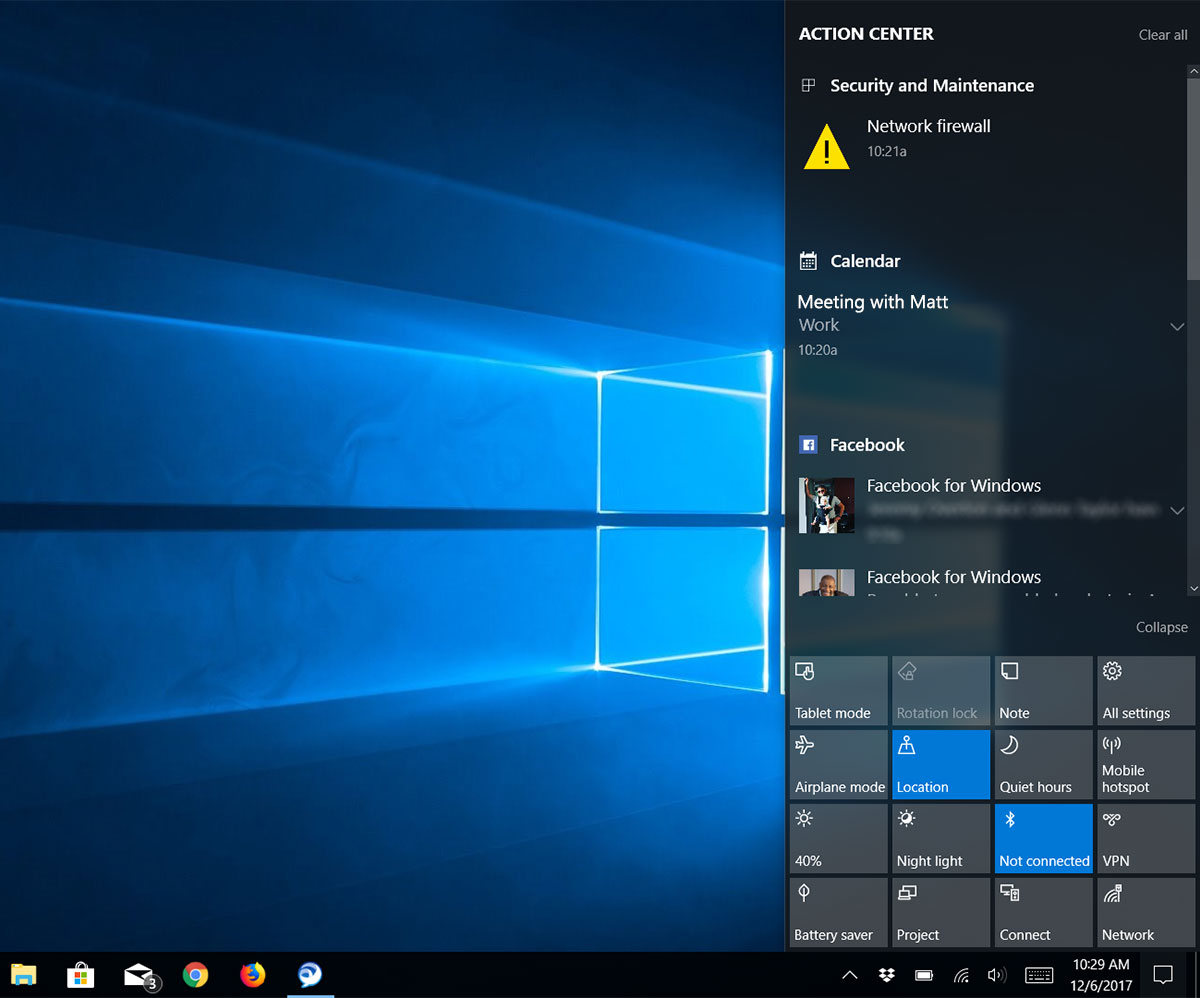
 The Windows 10 Action Center shows system and app notifications and gives instant access to frequently needed settings. It is also your one-stop shop for controlling functions like wifi and screen brightness on your computer.
In this post, we will cover the following topics:
- Where the Action Center is located.
- Parts of the Action Center.
- How to clear notifications.
- All About Quick Action Buttons – Definitely check this one out!
Where is the Action Center?
The Action Center is located on the Windows taskbar on the right-hand side by the date and time. The icon looks like a speech bubble and when there are new notifications the icon will change from empty to white with a number indicating the number of new notifications.

Parts of the Action Center Panel

How to Clear Notifications
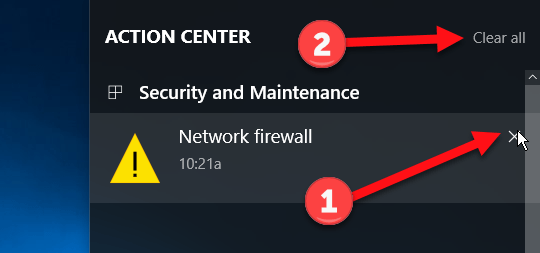
You have two options for clearing notifications.
- To clear just one, hover your mouse over a notification and click the X in the right corner.
- You can click “Clear All” at the top of the ACTION CENTER panel.
In a future post on Connect, we will take a closer look at how to customize Notifications in Windows 10.
Quick Action Buttons
You can either use the default 4 action buttons or you can expand the panel to 16.
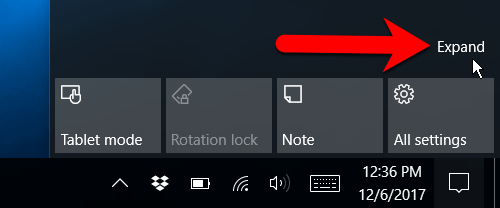
Expanded Quick Action Button
When clicked, many of the buttons turn settings On or Off. Other buttons open a panel where you can apply personal preferences for that setting.
Hover your mouse over the buttons below to learn about each.
In a future post on Connect, we will take a closer look at the settings that you can customize with each of the quick action buttons.
Questions / Comments
Please leave a message below if you have a question or comment about this post.
