


How to change the default app for Email
The fastest way to change your default app is through the Windows 10 Settings.
- Click or tap on the action center icon in the taskbar and click All Settings.

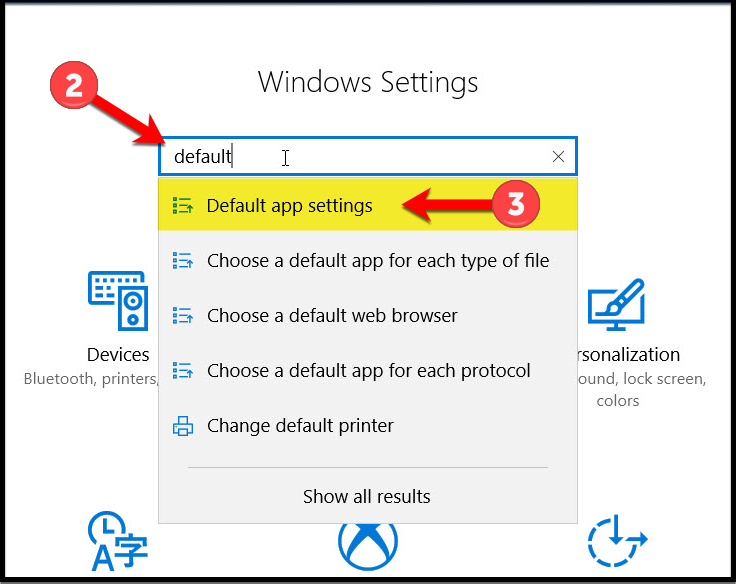
2. In the Windows Settings search box, type the word “default”.
3. Then click or tap “Default app settings” from the search results.
4. Locate the default apps for Email and Web browser.

5. On Email, click or tap the current default app and choose Chrome. (or a different app of your choosing)

6. Scroll down to Web browser and then click or tap the current default app. Click or tap Chrome. (or a different app of your choosing)

That’s it! You have successfully changed the default applications for Email and Web browser.
Questions or Comments?
Please leave a message below if you have a question or comment about this post.
