

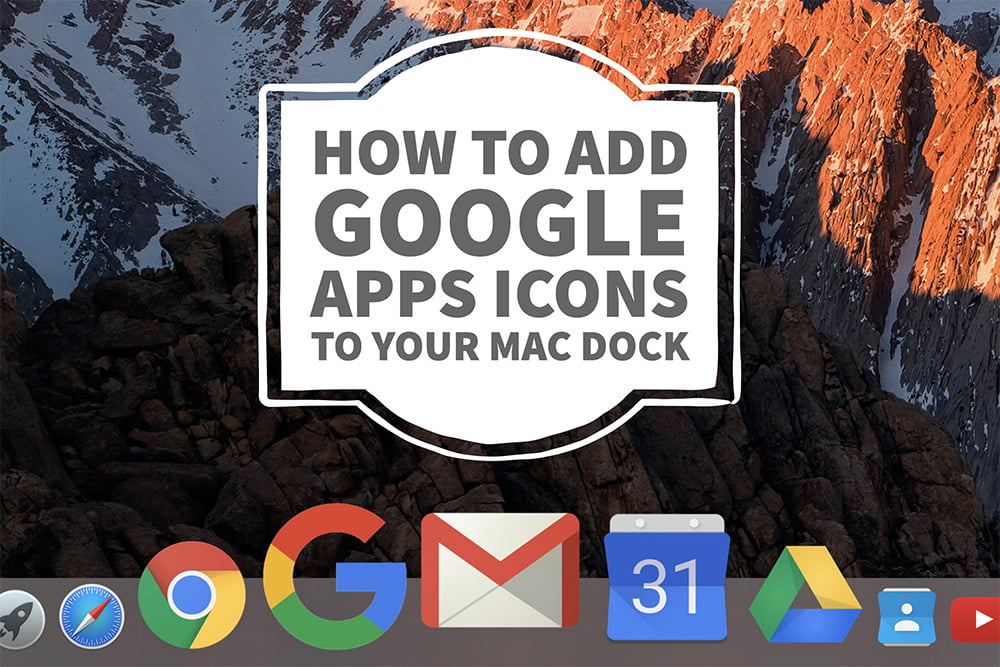
This post is a guide on how to add shortcut icons to the Apple macOS dock for some of the Google websites such as Gmail, Google Calendar, Google Drive and more.
How to add Google Apps icons to your Apple macOS Dock
1. Download the apps
Click the link below to download the required files and save to your desktop.

2. Extract the file contents
- Double-click the Zip file to extract a folder.
- Single click the folder and drag it to the side away from the zip file.

3. Move the apps to the Applications folder
- Double click the folder to reveal the included Google Website Link applications.
- Select all the apps and drag them to the sidebar and drop them on Applications.

4. Add the apps to the Dock
- Click on Applications in the sidebar.
- Scroll down to where you can see your new apps.
- Select one and drag it down to your dock and release it once you have placed it where you want.
- Repeat for all the apps you desire to have on your dock.

5. Remove apps you don’t want.
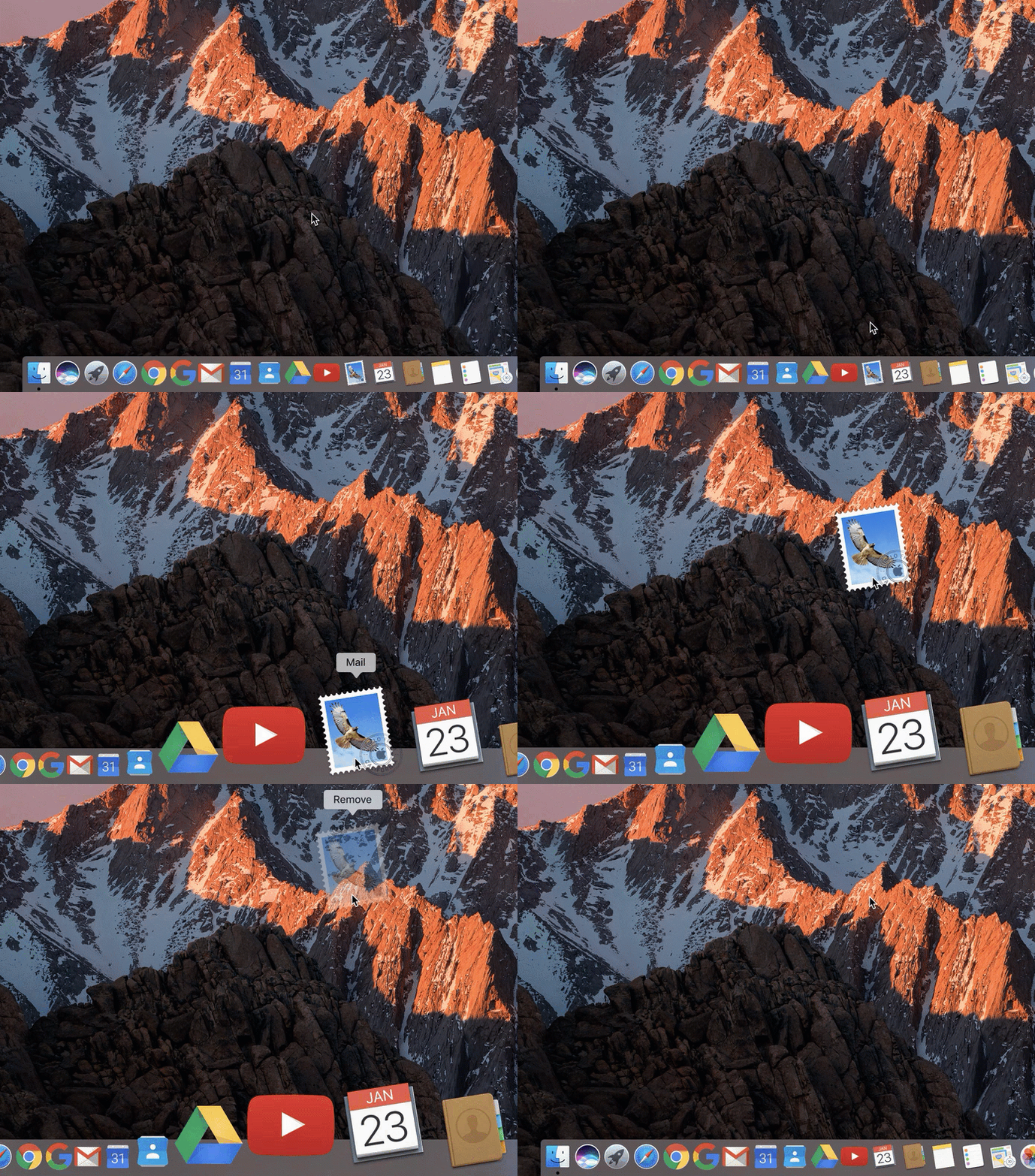
If you have apps on your dock you no longer want, just click and drag the icon up until the icon fades and you see the Remove bubble.
PLEASE NOTE: This just removes the application from the dock – it does NOT delete it permanently from your computer.
6. Trash the installation files.
Select and drag the installation files on your desktop down to your trash can. Empty the trash can if you wish to permanently delete the files.

7. Try out the new icons!
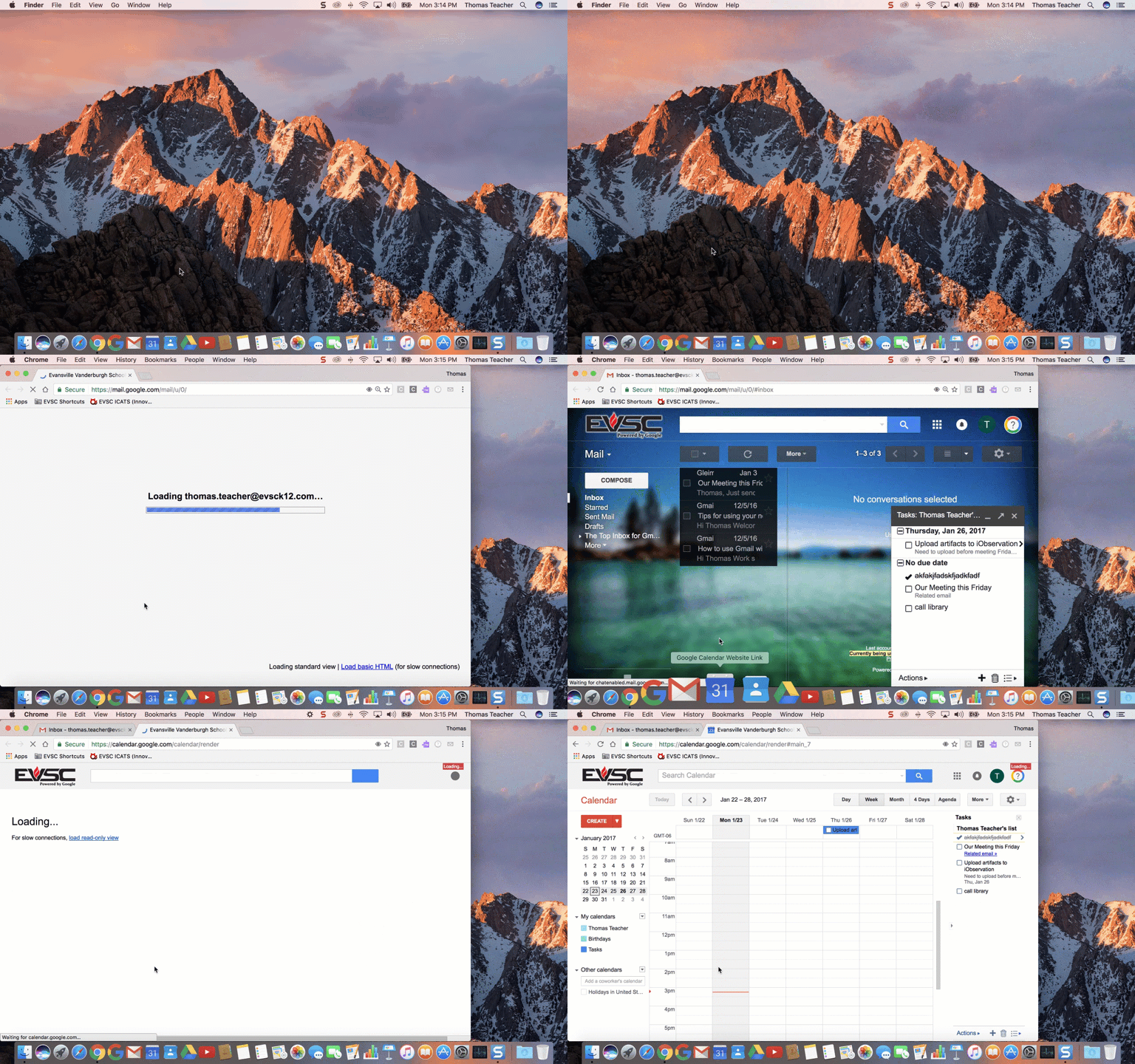
Clicking each icon will launch your default web browser and open a tab taking you to the website that it is named for.
NOTE: If you’re getting a security notice the first time you click one of these apps, see below on how to enable the apps through the security settings.
Are you getting a pop-up that says the app can’t be opened?
Follow the directions below to enable the apps in the macOS Security & Privacy settings.

1 comment
Thanks for the tips!!