

User Account 2-Step Verification
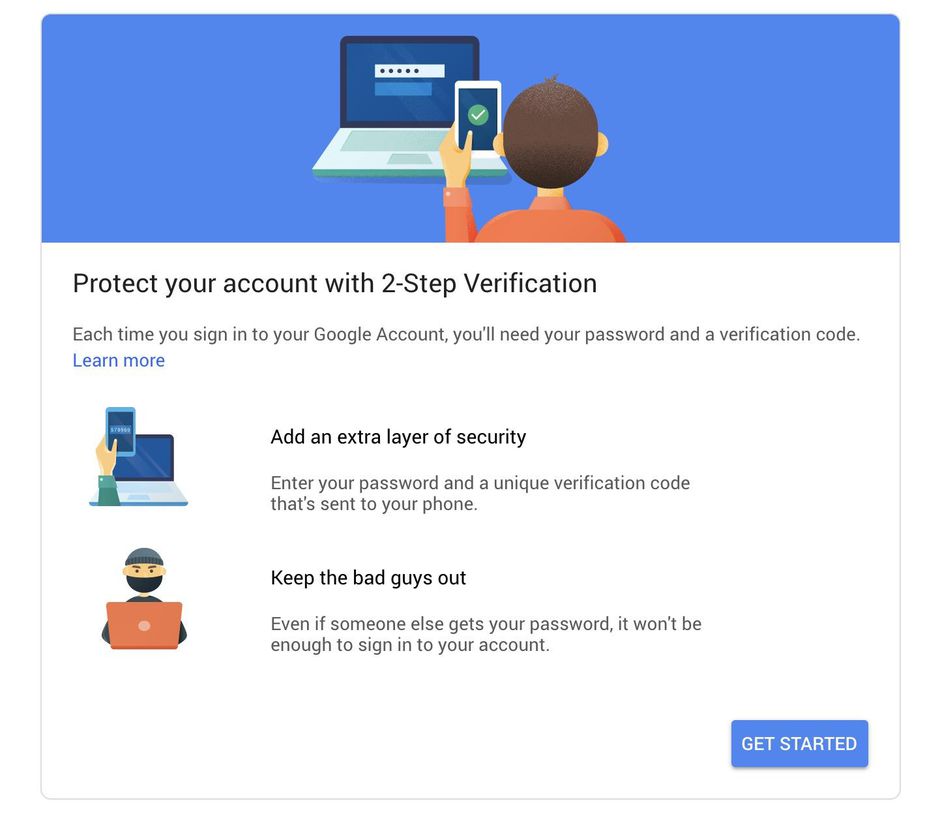
2-Step Verification puts an extra barrier between your user account and cybercriminals who try to steal usernames and passwords to access data. Turning on 2-Step Verification is the single most important action you can take to protect your personal and work user accounts.

What is 2-Step Verification?
With 2-Step Verification, users sign in to their account using two steps with something they know (their password) and something they have (Cell Phone or Backup Code).

Do I need 2-Step Verification? I’m not special. Why would I be targeted?
You are special! ? Cybercriminals target organizations of all sizes. If a hacker gets into your account, they can see your email, documents, spreadsheets, saved browser passwords, financial records $$$, and more.
A hacker could steal or guess a password, but they can’t reproduce something only you have such as your cell phone.

Recommended 2-Step Verification Methods
Google has multiple methods to choose from that require a second device (cell phone) to use for verification. We recommend that you choose at least one method, but you can enable more.
#1 – Text Message or Phone Call (easiest and fastest)
Google sends a 2-Step Verification code to mobile devices in a text message or voice call.

#2 – Google Prompt
Users can set up their Android or Apple mobile devices to receive a sign-in prompt. When they sign in to their Google Account on their computer, they get a “Trying to sign in?” prompt on their mobile device. They simply confirm by tapping their mobile device. Learn more about phone prompts.

#3 – Backup Codes
If a user doesn’t have their mobile device or works in an area where they can’t carry mobile devices, they can use backup codes for 2-Step Verification. Users can generate backup verification codes and print them ahead of time. And keep the codes in a secure location (not under keyboard) ?.

#4 – Google Authenticator & Other Verification Generators
Users generate one-time verification codes on an app on their mobile device, such as Google Authenticator. The user enters the code to sign in to their computer and other devices, including the mobile device itself. Google Authenticator and other apps don’t need an internet connection to generate codes.

How Do I Enable 2-Step Verification On My Account?
Please visit Google’s Protect your account with 2-Step Verification page to learn how to enable 2-Step Verification on your Google account.
Questions / Comments
If you have a question or comment about this page, please leave it in the comment section below.