


Here’s how to make sure your video and audio files are shared properly when you embed them in Google Slides so anyone can view them.
1). In your web browser, go to Google Drive .
2). Create a new folder to store all your video and audio files. Give it a name.
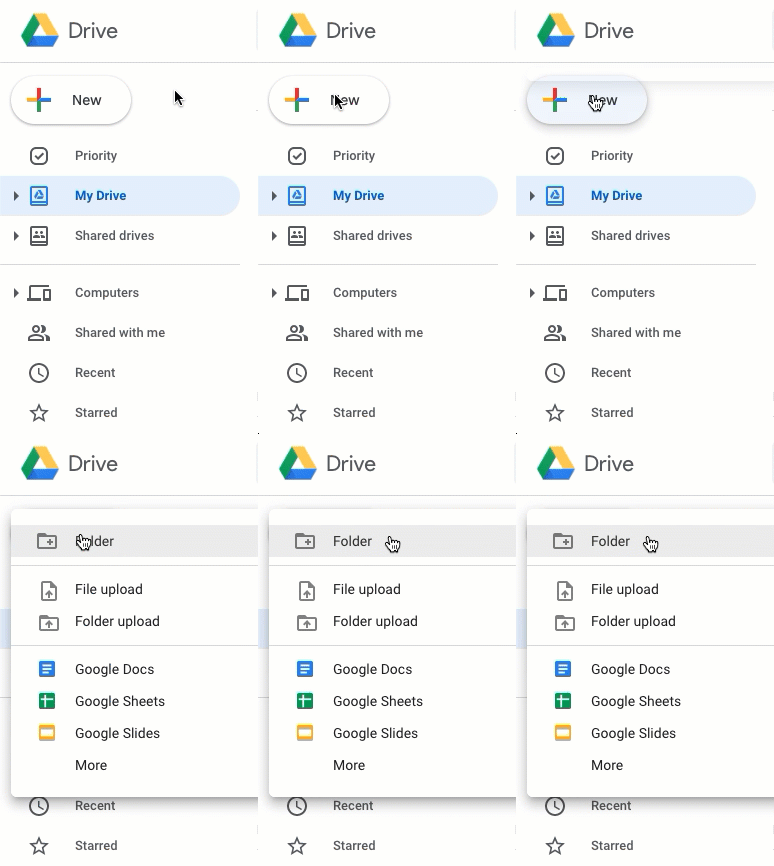

3). Double-click the folder to go into it.
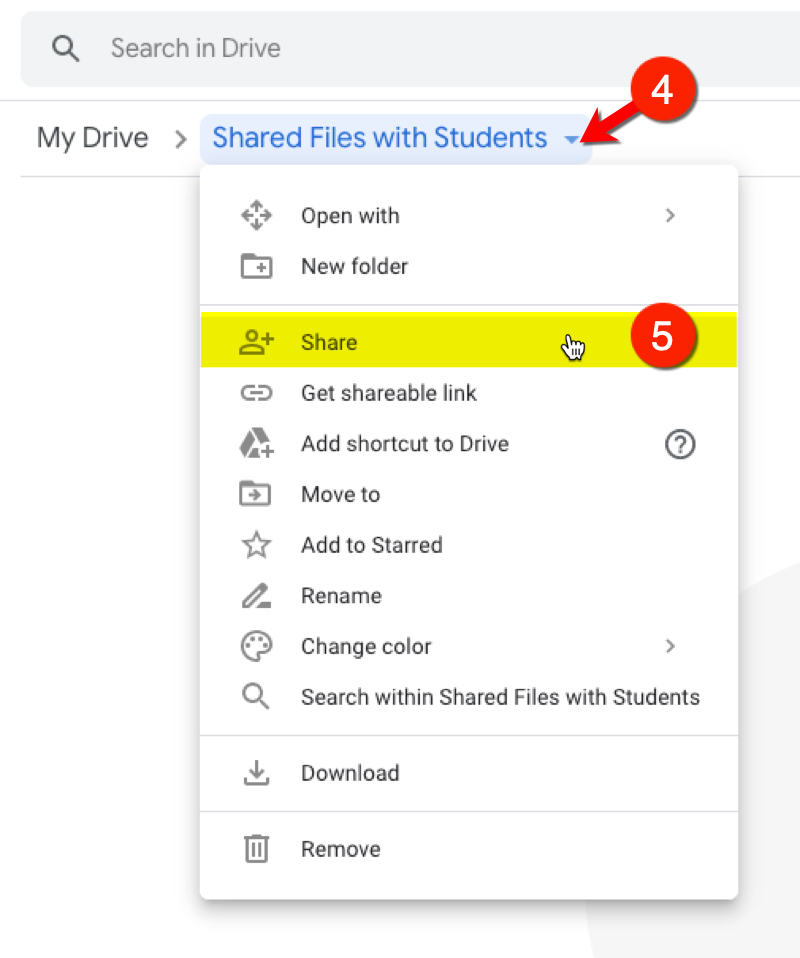
4). Click the caret icon next to the Folder name to reveal menu.
5). Click Share.
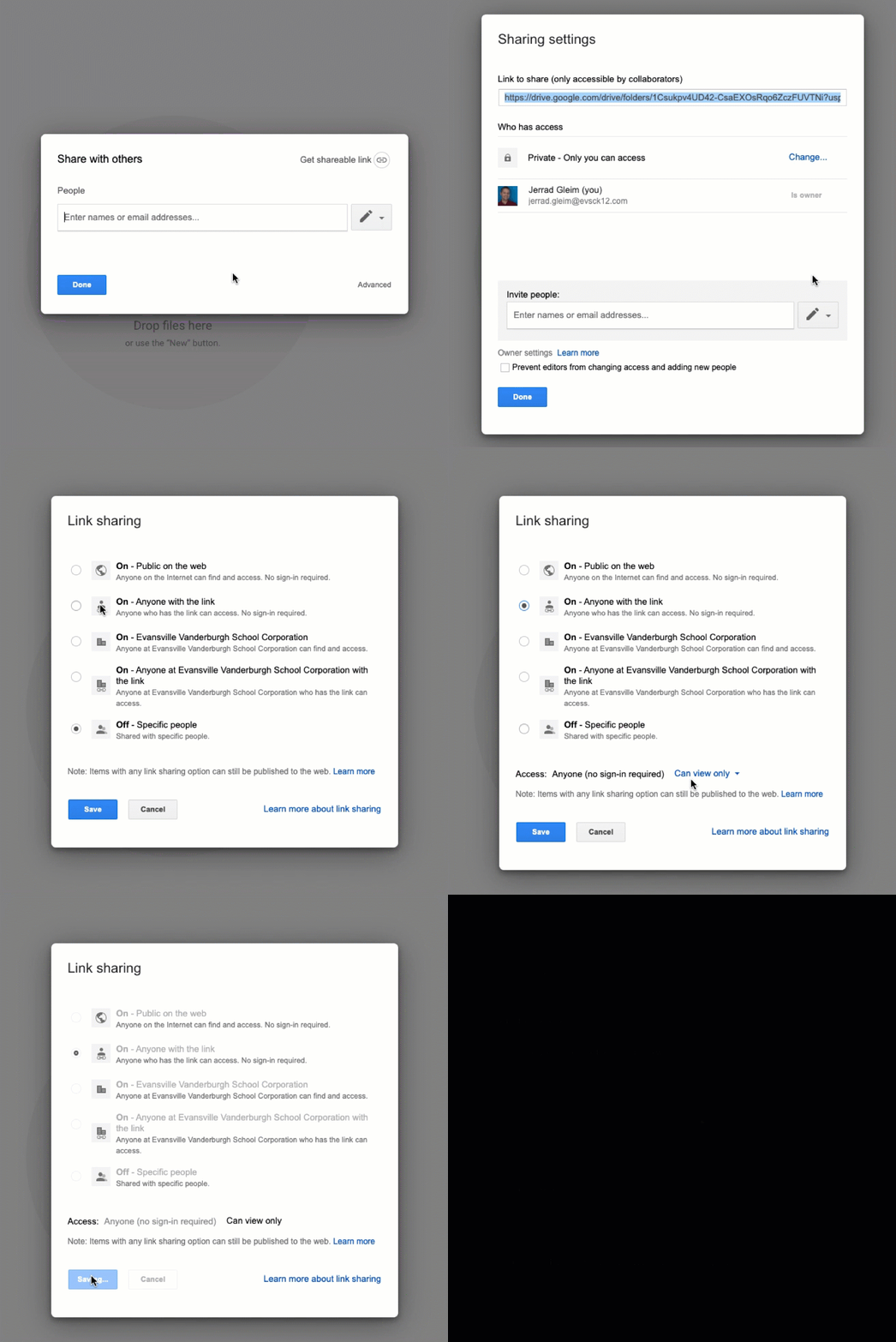
6). In the share menu,
- Click Advanced in the bottom-right corner.
- Click Change on who has access.
- Select On – Anyone with the link.
- Make sure Access is set to Can view only.
- Click Save.
- Click Done.
7). Put any and all of your audio and video files for Google Slides in this shared folder.
The files will automatically be given the View-only access for students and anyone to view the files in your Google Slides.
8). Add your video and audio files from this folder into your Google Slide presentation.
9). Share the presentation!
