


The Cisco Webex integration for G Suite lets users schedule Webex meetings and Webex Personal Room meetings directly from Google Calendar or Gmail, in any browser. The calendar invite shows the Webex meeting details, including a link to join the meeting.
- Webex Meeting – is a pre-scheduled meeting that occurs at a later date/time.
- Webex Personal Room Meeting – is an impromptu meeting that can start when you select “Start Meeting”.

WebEx using Google Calendar
Setup Your Webex Site in Google Calendar
Before you can schedule a Webex meeting or Webex Personal Room meeting, you must setup Webex to use with your Google account.
1). In Google Calendar, click the Webex icon in the right toolbar.

2). Click Get Started in the Webex Meetings box.
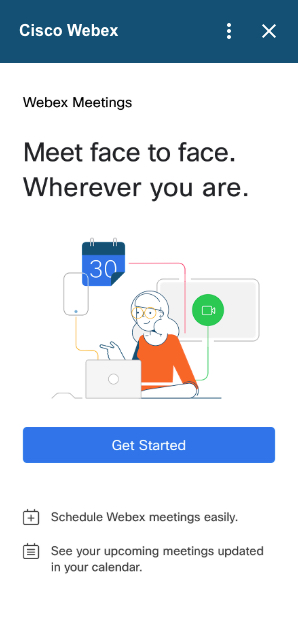
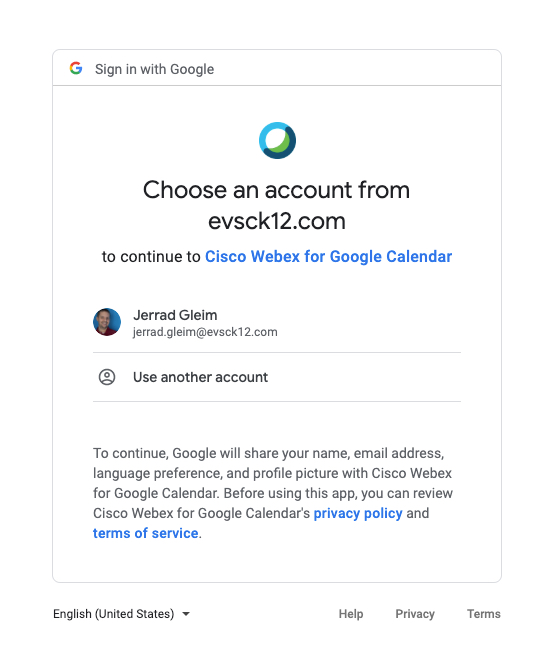
3). To authorize, choose the G Suite account that you want to use with Cisco Webex for Google Calendar.
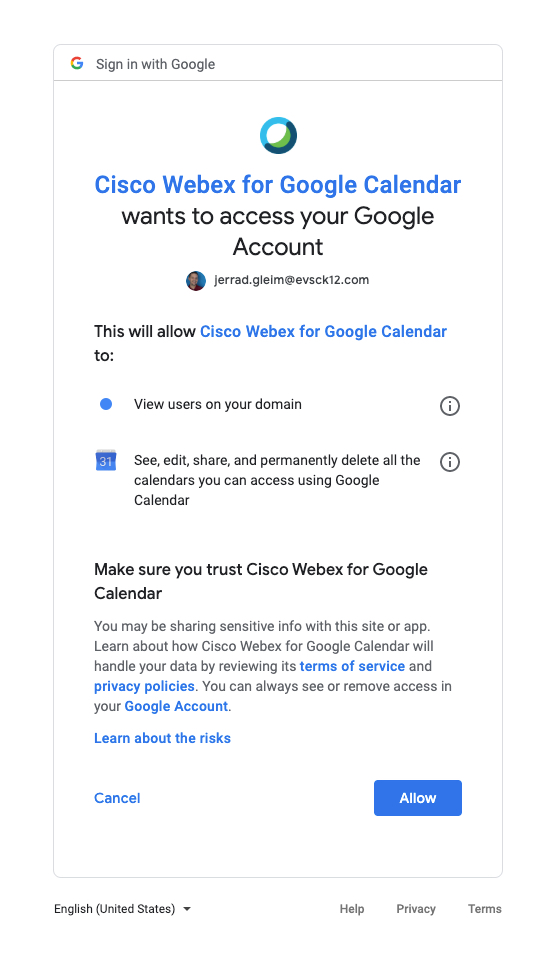
Select Allow
5). If you are asked, enter the Webex site (evsc.webex.com) that you want to use to schedule meetings and select Next.

6). If you want to continue to schedule a meeting, see Schedule a Meeting, otherwise select Cancel event creation.
Schedule a Meeting in Google Calendar
1). In Google Calendar, select Create event.

2). Give the event a title.
3). Add a date and time.
4). Click More Options at the bottom of the event details, select Add conferencing, and then select Webex meeting or Webex Personal Room meeting.
- Webex Meeting – is a pre-scheduled meeting that occurs at a later date/time.
- Webex Personal Room Meeting – is an impromptu meeting that can start when you select “Start Meeting”.
5). If you want the meeting to repeat, select the Does not repeat dropdown (under the date and time) and choose an option how often you want the meeting to repeat, and when you want the repeating meeting to end.
6). Add guests. You can add individuals, Contact groups, and courses from Google Classroom.

7). (Optional) Edit the meeting options. In the side panel, select Cisco Webex and choose the meeting template, allow attendees to join the meeting before the host, assign an alternate host, and change the audio settings.

8). Select Save, and then Send.
The calendar invite shows the Webex meeting details, including a link to join the meeting. You can copy the link and share it with others.
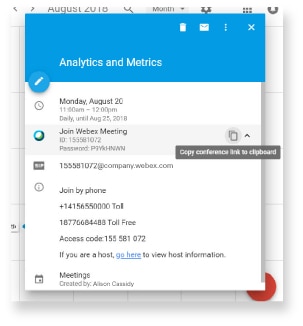
If your meeting repeats and you need to change the date or time of one of the meetings, locate and select that instance of the meeting, select Edit event, make your changes, select , and select OK.
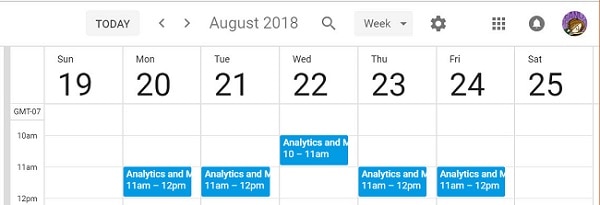
If your meeting repeats and you want to delete an occurrence of the meeting because you’ll be on vacation or it’s a public holiday, locate and select that instance of the meeting, select , and select OK.

9). (Not for classroom use) To make it easier for people to join a meeting from a Cisco Webex room or desk device, select Rooms, and then select the room devices that you want to add. You can choose from suggested rooms or search for a new one. This makes a Join button appear on the device before the meeting starts.
Your administrator needs to set up your account with the Cisco Webex Hybrid Calendar Service so you can schedule room devices this way.
Start or Join a Meeting in Google Calendar
It’s convenient to start or join a meeting that’s been scheduled using Google Calendar.
Do one of the following:
- Select the link in the calendar invite in Google Calendar.
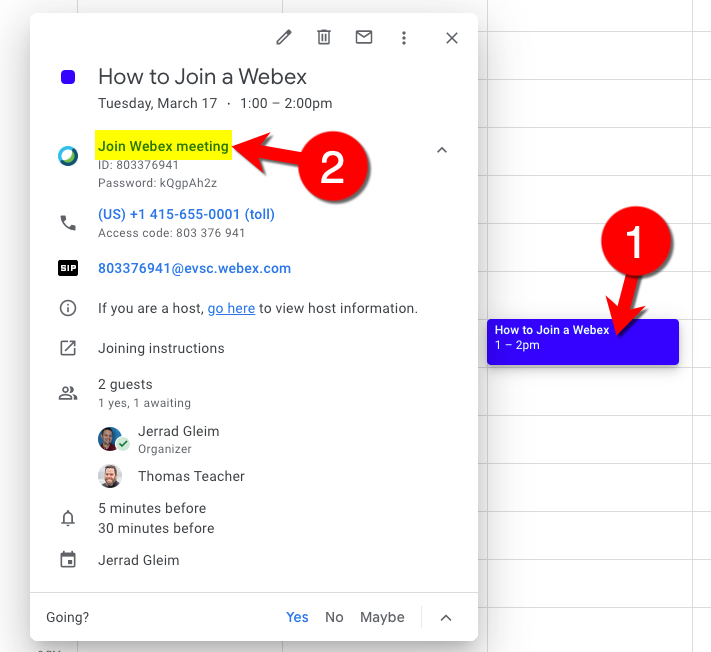
- Join from a video system or application by dialing the video address in the calendar invite.
- Join by phone by dialing the number in the calendar invite. (NOT toll-free – best to use a cell phone that has free long-distance calling.)

- If you have a Cisco Webex Hybrid Calendar Service, select Join on your video device. The Join button appears 5 minutes before the meeting starts.

- From the Cisco Webex Teams app, select Join. The Join button appears 5 minutes before the meeting starts, if you’re using Cisco Webex Hybrid Calendar Service.
Allow Someone Else to Schedule Meetings on Your Behalf
You can delegate someone else to schedule meetings for you in Google Calendar. Having a delegate is useful in situations where you’re unable to reach a computer or if you have another person manage your calendar.
The delegate must have a host account in Cisco Webex Meetings.
1). Sign in to your Webex site, select Classic View, and select My Webex.
2). Select Preferences > Scheduling Options.
3). In the Scheduling permission box, enter the email address of one or more hosts you want to allow to schedule meetings on your behalf.
4). Select Save at the bottom of the Preferences page.
5). In Google Calendar, under My calendars, point to the calendar that you want to create a delegate for and select Options for <calendar name> > Settings and sharing.
6). Under Share with specific people, select Add People.
7). Enter the email address of one or more hosts you want to delegate your calendar to.
8). Select the Permissions box, select the privilege level, and select Send.
WebEx using Gmail
Schedule a Meeting in Gmail
After you’ve set your Webex site, you can schedule a Webex meeting from an email in Gmail. You can schedule a meeting with the email recipients to discuss the content of an email.
1). In Gmail, select an email and select Cisco Webex in the side panel.
2). Select Schedule a meeting.

3). Change the meeting topic and select the time zone, date, and time.
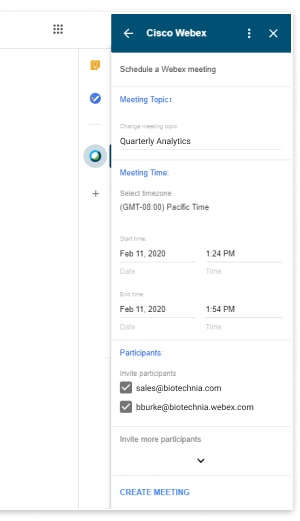
4). Invite participants. By default, the email addresses in the “To” and “From” fields in the email are invited to the meeting. To invite other participants, select under Invite more particpants and enter their email addresses.
5). Select Create Meeting.
The meeting details show. If you want to start the meeting right away, select Start Meeting.
Start an Instant Meeting in Gmail
After you’ve set your Webex site, you can schedule a Webex meeting from an email in Gmail. You can meet instantly with the email recipients to discuss the content of an email.
1). In Gmail, select an email and select Cisco Webex in the side panel.
2). Select Start an instant meeting.

4). Select the meeting topic to change it.

4). Invite participants. By default, the email addresses in the “To” and “From” fields in the email are invited to the meeting. To invite other participants, select under Invite more particpants and enter their email addresses.
5). Select Start Meeting.
Start or Join a Meeting in Gmail
It’s convenient to start or join a meeting that’s been scheduled using Gmail.
Do one of the following to start or join a meeting:
- Select Cisco Webex in the side panel. Under Upcoming Meetings, select Start or Join next to the meeting.

- Select the link in the email invitation in Gmail.

- Join from a video system or application by dialing the video address in the email invitation.
- Join by phone by dialing the number in the email invitation. (NOT toll-free – best to use a cell phone that has free long-distance calling.)

- If you have a Cisco Webex Hybrid Calendar Service, select Join on your video device. The Join button appears 5 minutes before the meeting starts.

- From the Cisco Webex Teams app, select Join. The Join button appears 5 minutes before the meeting starts, if you’re using Cisco Webex Hybrid Calendar Service.
Webex Troubleshooting
This section has been moved to the new Cisco Webex Resources page that can be found linked on the Technology page.
Questions / Comments
If you have a question or comment about this post, please leave it in the comment section below.

8 comments
My students are accustom to working in groups to complete discussion questions on readings. Can I set-up a students to lead and allow them to create an assigned group including me in the group. Then can I rotate in and out of discussion groups?
Hi Janit! As the host, you can turn over the hosting/lead ability to a student once the meeting has been started by the teacher. Unfortunately, you can’t run more than one meeting at the same time. Let me know if you have any other ideas or questions. I’ll continue to think about possible solutions and workarounds for this as you’re not the only teacher wanting to do this kind of learning.
Hi!
I have to record a Webex presentation for a conference that will now be held virtually. I’m not sure how to do that. I have a Google slide deck that can be converted to Powerpoint. I also need to stop and start the recording to allow participants to do activities. Any guidance you could give would be much appreciated.
Thank you,
Patricia
Hi Patricia! Instead of creating a Webex Meeting, create a Webex Personal Room Meeting. Then you can share the link to your meeting as https://evsc.webex.com/meet/patricia.weinzapfel/ and anyone can join using that link. Let me know if you want to practice. 🙂
If we are setting up a meeting that involves parents, how do parents get into the conference?
Schedule the conference as normal using Google Calendar and enter their email address where you add Guests. No matter which email they have (Gmail, Yahoo, MSN, Outlook,…), they’ll see a link to join the Webex and directions on how to do so. Feel free to send them the directions on how to Join a Webex found on the Student website – https://evscstudents.com/cisco-webex-resources/.
Tip: If using with students you can remove the chat feature and only allow questions to the “host.” You can also change student privileges to remove their ability to see the thumbnails of other students. It can be very distracting if they are waving to each other during a “lesson,”although you can change this viewing near the end of the call to allow students the time to say hi to each other. These settings must be reset at the start of each meeting.
This is a great tip Kerry! Thanks for sharing.