

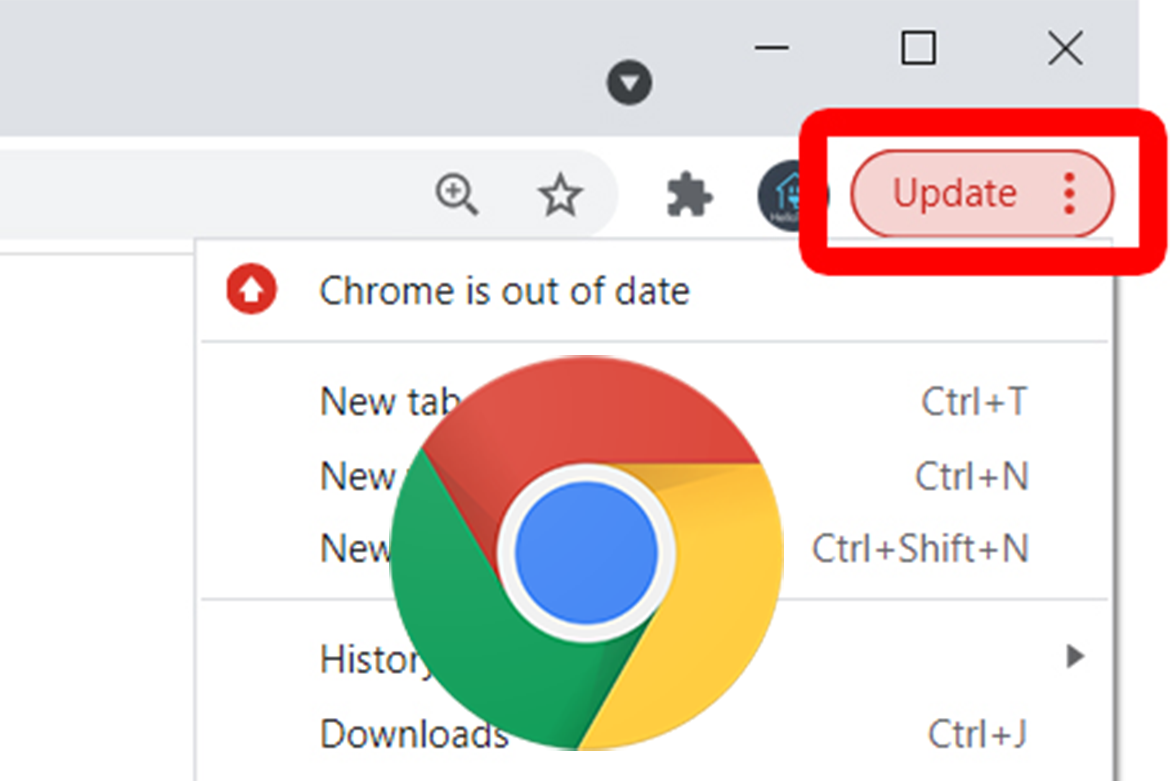
Do you ever see a colored UPDATE button in the top-right corner of your Chrome browser? Have you ever seen it when it was a red Update button? Don’t ignore it. Google pushes out security updates and fixes that help Chrome keep your browsing safe and secure. When the update button is red means updates are overdue by at least a week.
Here’s how to update Chrome to the latest version. But first, if your excuse for not updating is you don’t want to lose all the windows and tabs you have open, check out how to continue Chrome where you left off.
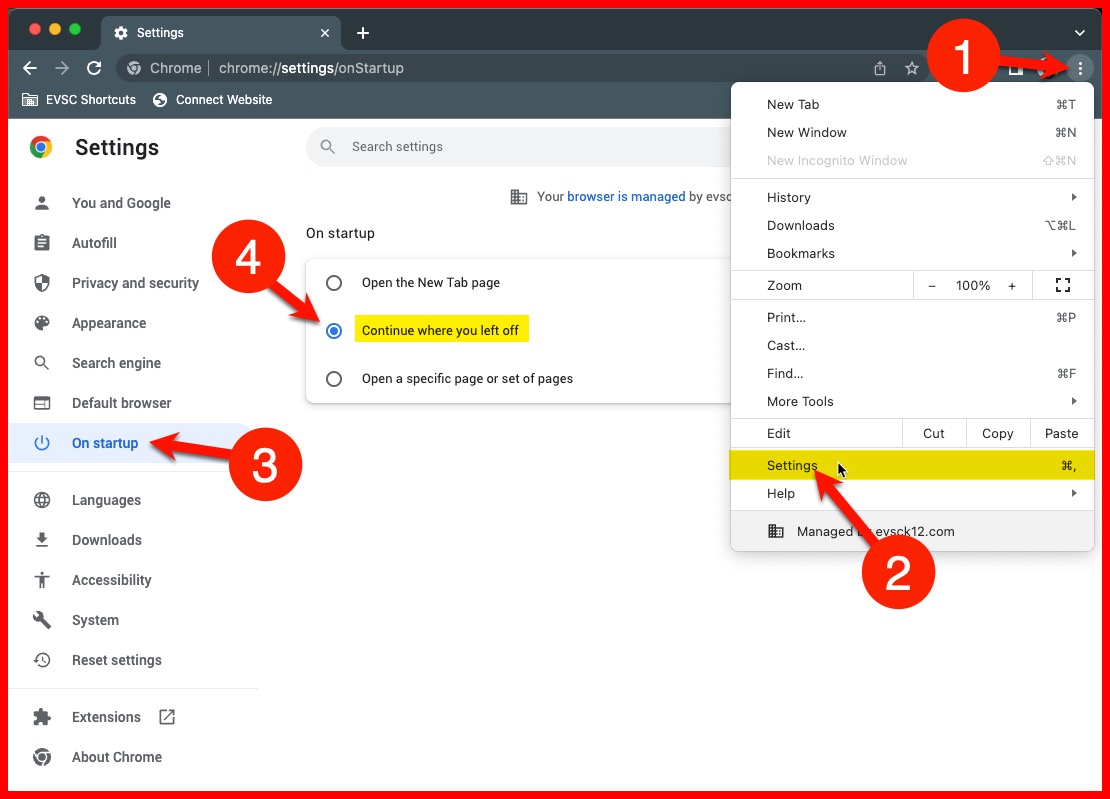
How to “Continue Where You Left Off” in Chrome
This setting allows you to have Chrome reopen all the tabs and windows you currently have open when starting up Chrome.
1). Click the 3-dots button in the top-right corner next to your avatar.
2). Click Settings near the bottom.
3). Click On startup in the left sidebar.
4). Select Continue where you left off.
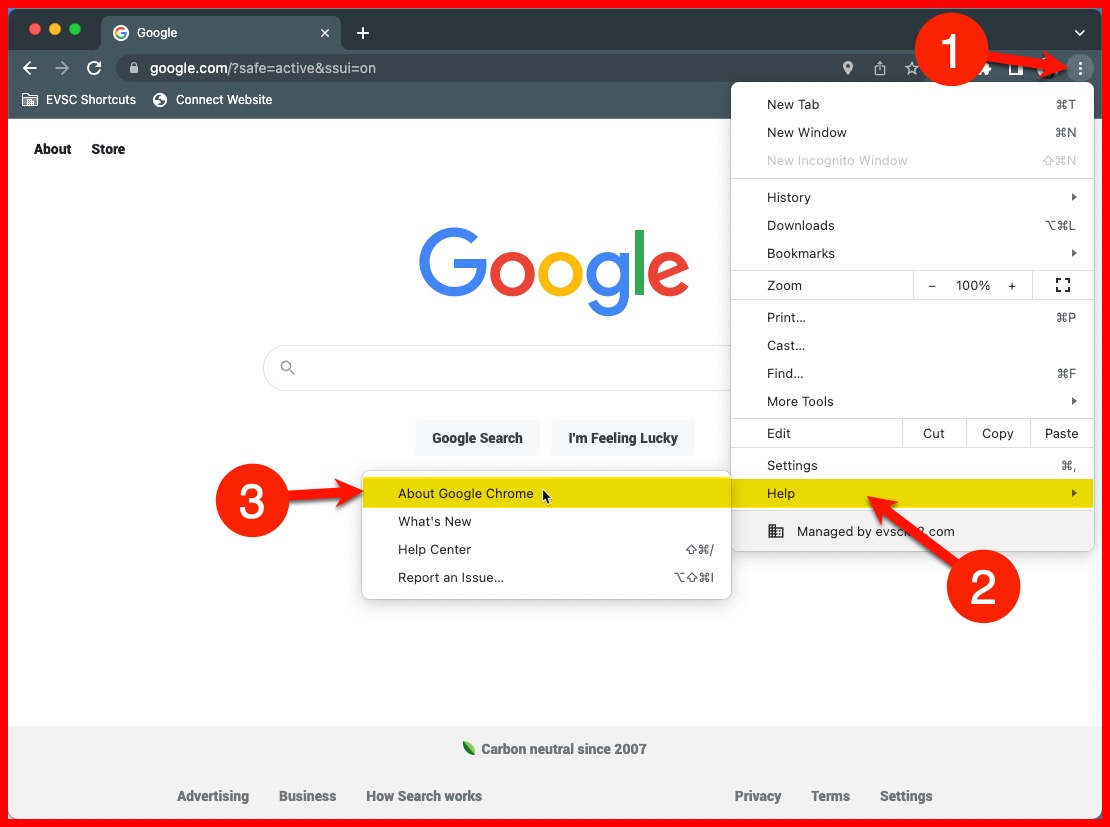
How to Update Google Chrome
1). Click the 3-dots button in the top-right corner next to your avatar.
2). Hover your mouse over Help.
3). Select About Google Chrome.
NOTE: You can also get there by typing chrome://settings/help into the address bar.
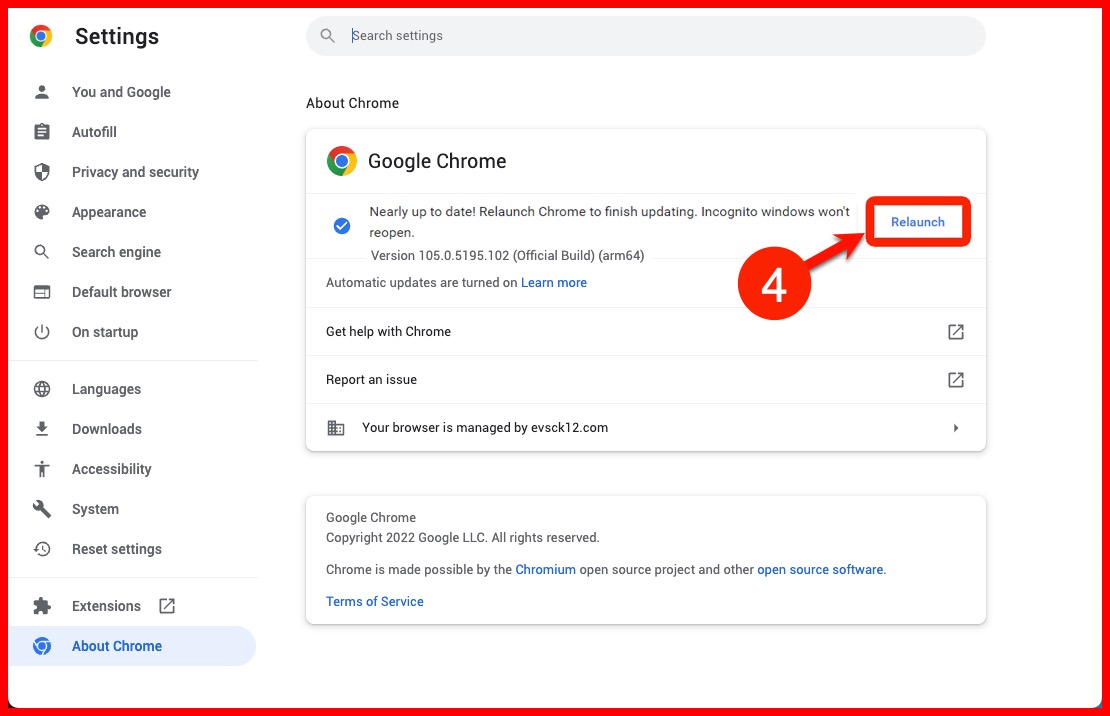
4). Next, wait for the update to finish and click Relaunch.
If there is an update available, it should already be downloaded, but will not be installed until you relaunch the browser.
Questions / Comments?
Check out this tutorial on the EVSC Connect website and leave a comment at the bottom.
